Wikipedia before and after
Real screenshots of the English Wikipedia article "Dark mode", logged out, taken with the extension. They are not mockups.
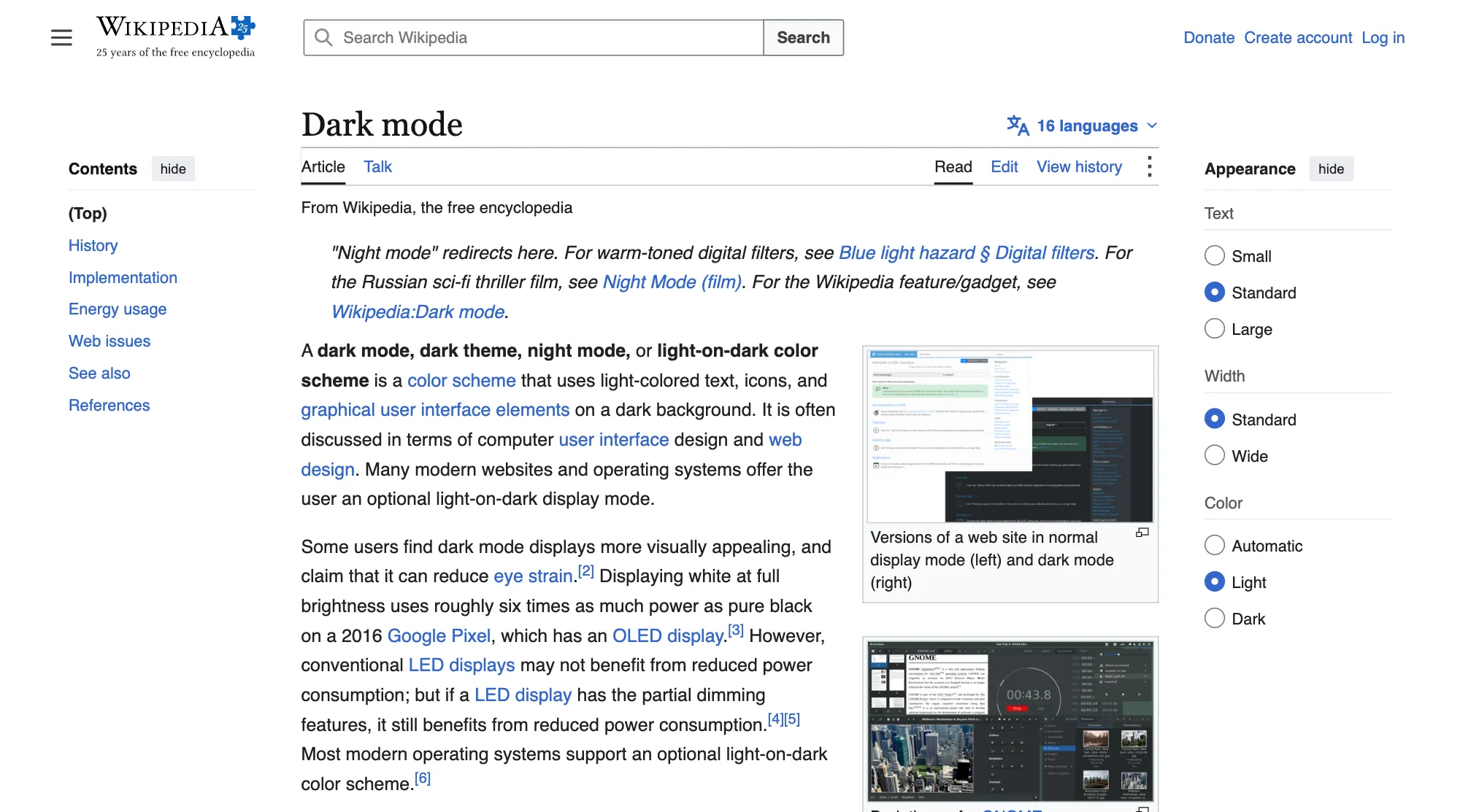
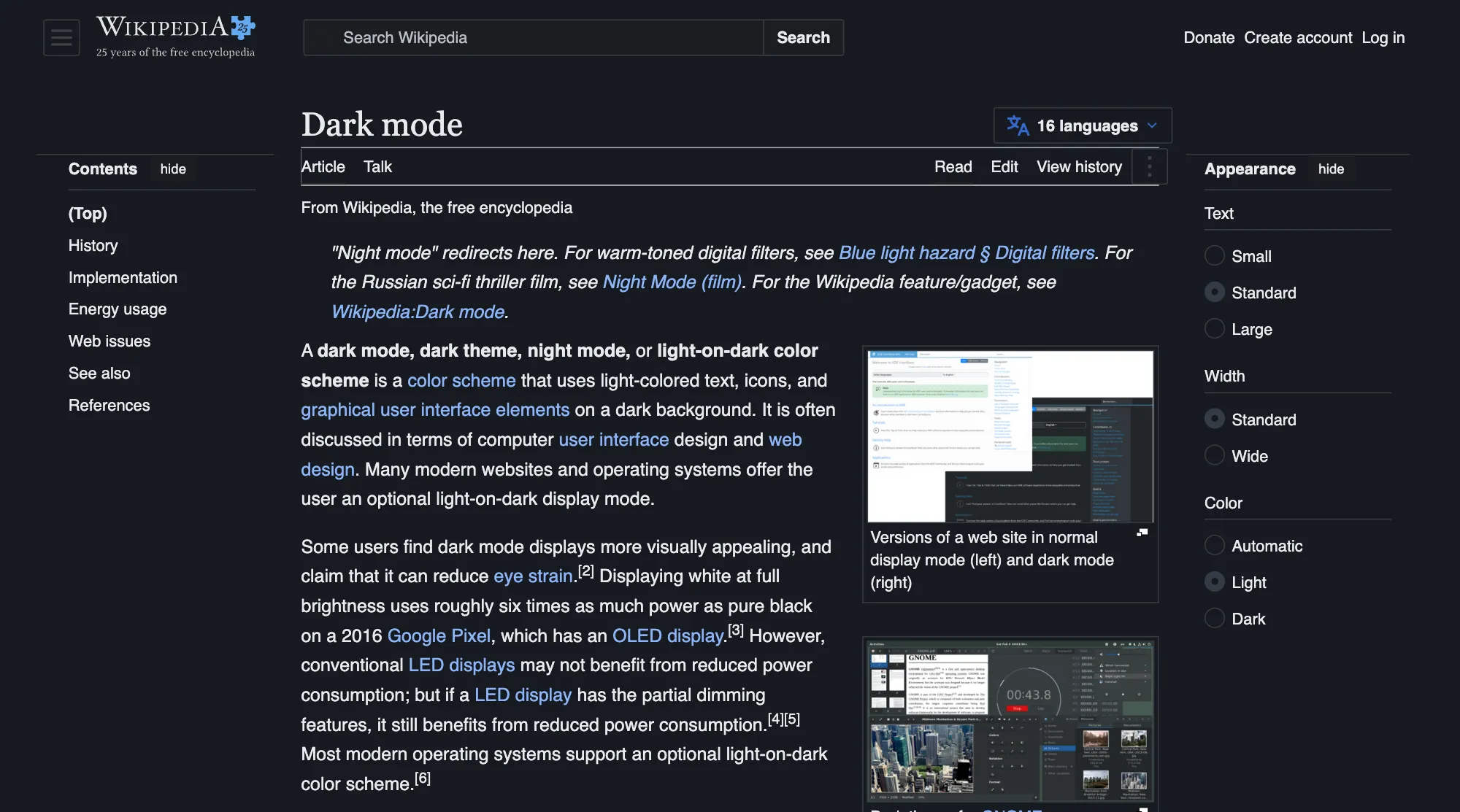
Engine used: Auto Engine
How to turn on dark mode for Wikipedia
- Add ThemeSwitcher to Chrome from the Chrome Web Store. It is free, and the side panel needs Chrome 114 or newer.
- Open wikipedia.org in a tab.
- Click the ThemeSwitcher icon in the toolbar to open the side panel.
- Choose Auto Engine and turn dark mode on. ThemeSwitcher remembers both for wikipedia.org. Alt+Shift+D toggles it from the keyboard.
- If something looks wrong, press Report this site as broken. It shows the domain it will send, and sends only after you press Send report.
What changes on Wikipedia
- The white page and the side panels turn near-black and the article text turns light.
- Links turn a light blue that stays readable on the dark background, and the Contents and Appearance panels keep their layout.
- The photos inside the article are pictures, so they stay light. ThemeSwitcher doesn't recolor photos and screenshots.
- The Wikipedia wordmark and its tagline are dark artwork that ThemeSwitcher inverts so they stay visible on the dark header.
Frequently asked questions
Which ThemeSwitcher engine works best on Wikipedia?
The screenshots on this page were taken with the Auto engine, which picked its CSS mode on this page and recolors backgrounds and text by contrast. ThemeSwitcher remembers the engine you pick for wikipedia.org.
Does this work on every Wikipedia language and page?
We only published screenshots of one English article, so we don't make claims about other pages. Wikipedia sites share the same layout, and you can switch engine in the side panel if a page looks wrong. If something looks wrong, use Report this site as broken.
Does ThemeSwitcher see which articles I read?
The page is recolored on your device. ThemeSwitcher never sends page addresses or page content. The optional usage report is off unless you turn it on and never includes sites. A broken-site report is sent only if you press Report this site as broken and confirm it, and it contains just the domain, engine, theme label and version.