YouTube before and after
Real screenshots of the YouTube homepage feed, taken with the extension. They are not mockups.
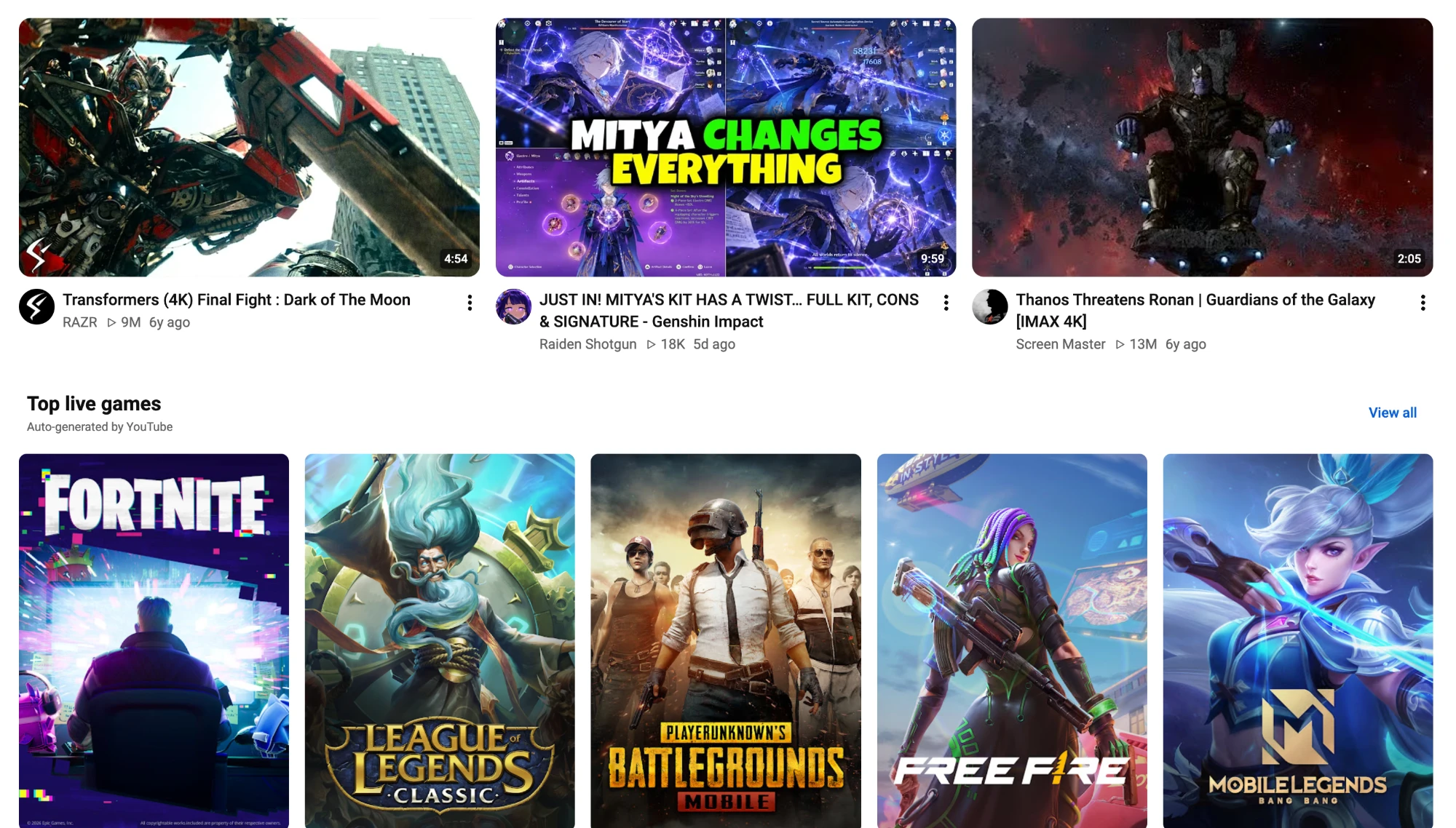
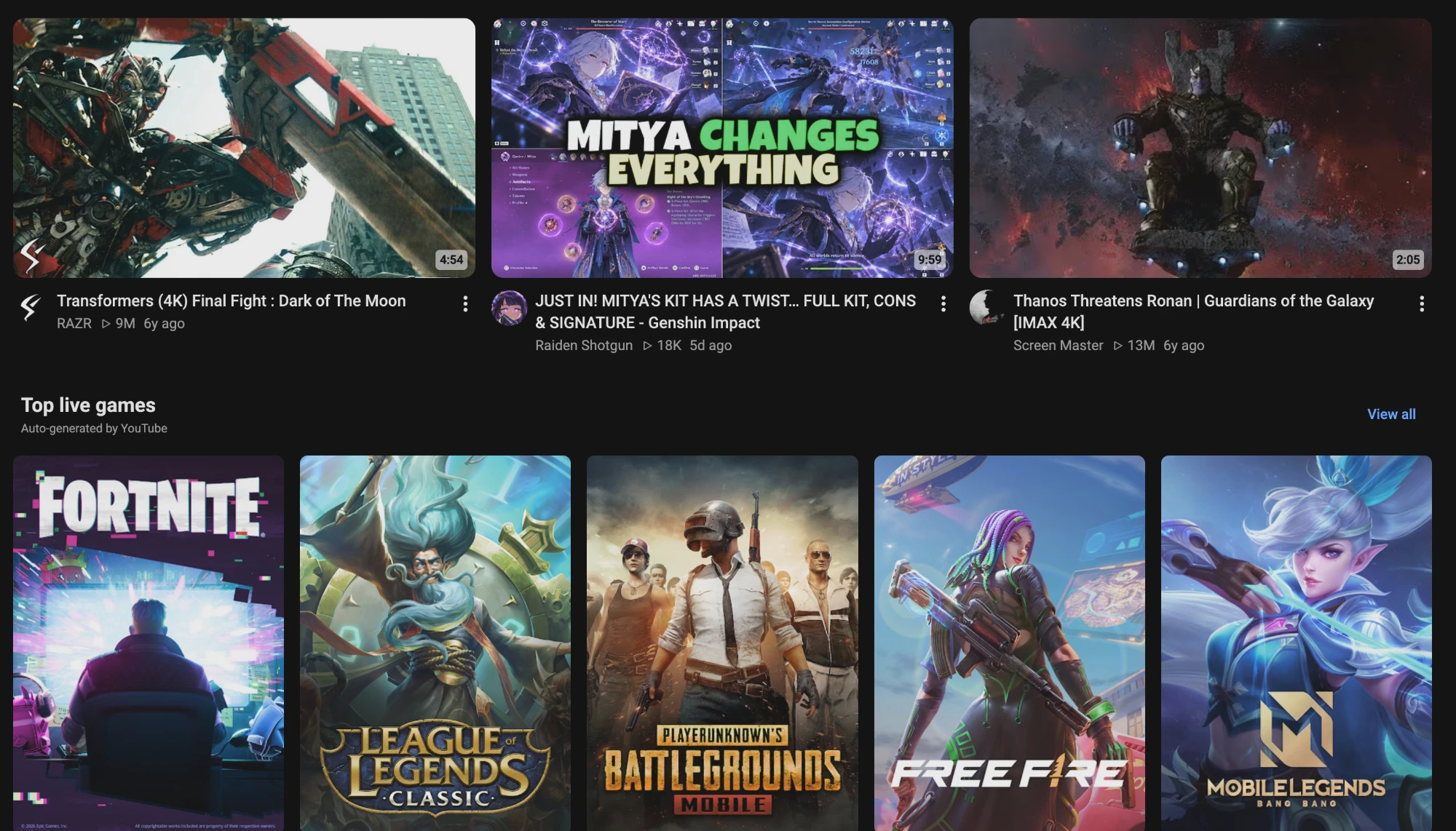
Engine used: Auto Engine
How to turn on dark mode for YouTube
- Add ThemeSwitcher to Chrome from the Chrome Web Store. It is free, and the side panel needs Chrome 114 or newer.
- Open youtube.com in a tab.
- Click the ThemeSwitcher icon in the toolbar to open the side panel.
- Choose Auto Engine and turn dark mode on. ThemeSwitcher remembers both for youtube.com. Alt+Shift+D toggles it from the keyboard.
- If something looks wrong, press Report this site as broken. It shows the domain it will send, and sends only after you press Send report.
What changes on YouTube
- The white feed background turns near-black, and video titles, channel names and view counts turn light.
- Video thumbnails and the game cover art in the Top live games row keep their original colours. ThemeSwitcher doesn't recolor images or video.
- Duration badges on the thumbnails, channel avatars and the blue View all link look the same as before.
- The Top live games heading and its Auto-generated by YouTube caption turn light, like the rest of the feed text.
Frequently asked questions
Which engine should I use on YouTube?
These screenshots were taken with the Auto engine, which samples the page and picks an approach itself. You can switch to the CSS or Invert engine in the side panel, and ThemeSwitcher remembers the choice for youtube.com.
Will videos and thumbnails look inverted?
No. In the screenshot every thumbnail keeps its original colours. ThemeSwitcher recolors the page around images and video, not the images themselves.
What happens if a page is already dark?
When a page is already dark, the side panel shows This site is already dark and ThemeSwitcher leaves it alone, so nothing is darkened twice. Press Theme it anyway if you want ThemeSwitcher's theme instead.